
Guide 06 0:12 Narrated · Sound on
Photos, videos and voice notes Read the narration 2 lines
Browse the photos, videos and stickers in one place. Listen to voice notes, and turn them into text you can read and search.
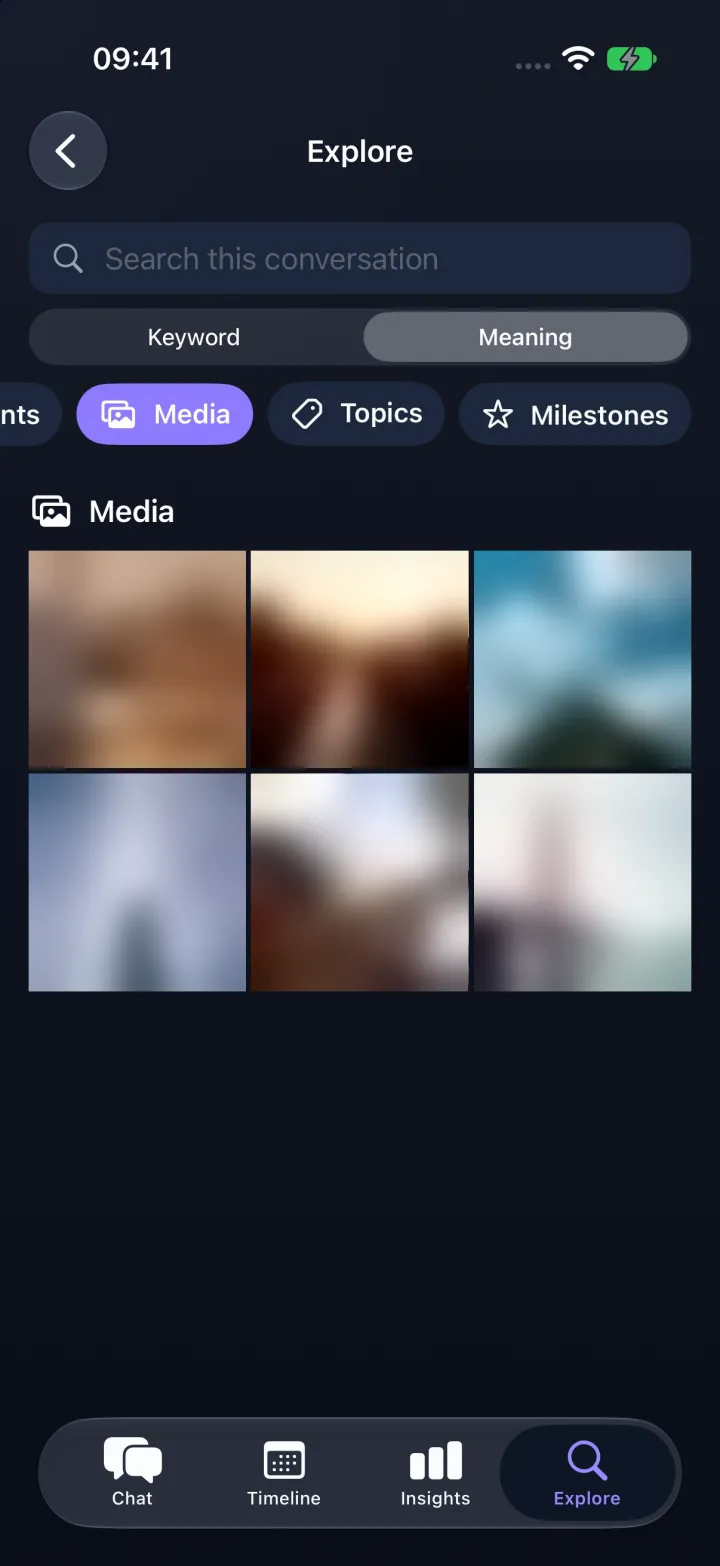
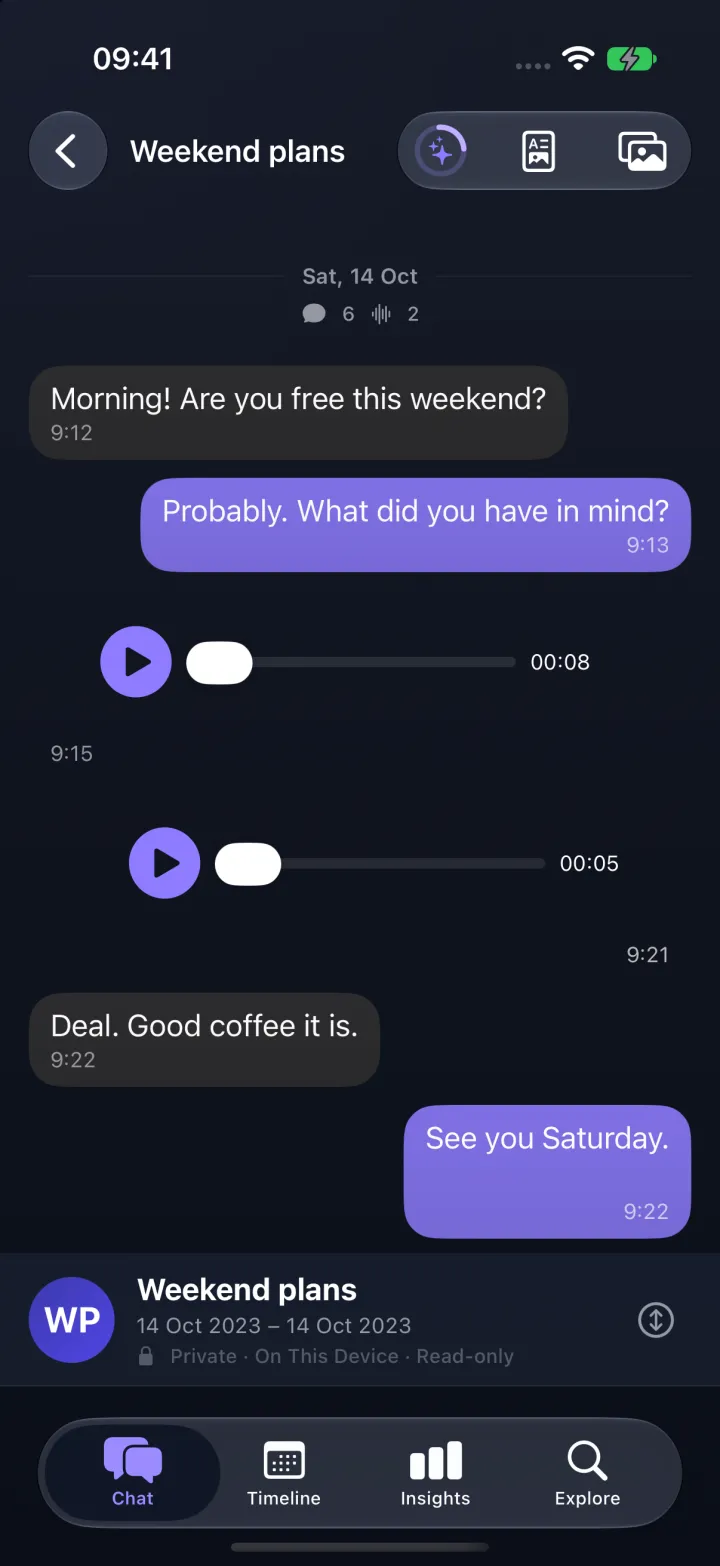
The photos and voice notes are often the parts of a chat you want most. Chat Explorer puts the media in one gallery, plays voice notes in the conversation, and can turn them into text.
Browse photos and videos.
- Open a chat and tap Media at the top right.
- Use the filter to show All, Photos or Videos.
- Tap an item to open it full screen.
- Tap Show in Chat to jump to the message it was sent with.
Turn voice notes into text.
- Turn on Enable Transcription in Settings, then Preferences, then Audio Transcription. You may have turned it on when you set up the app.
- In the chat, touch and hold a voice note to open its Transcript.
- Tap Transcribe. The text appears under the recording, ready to read.
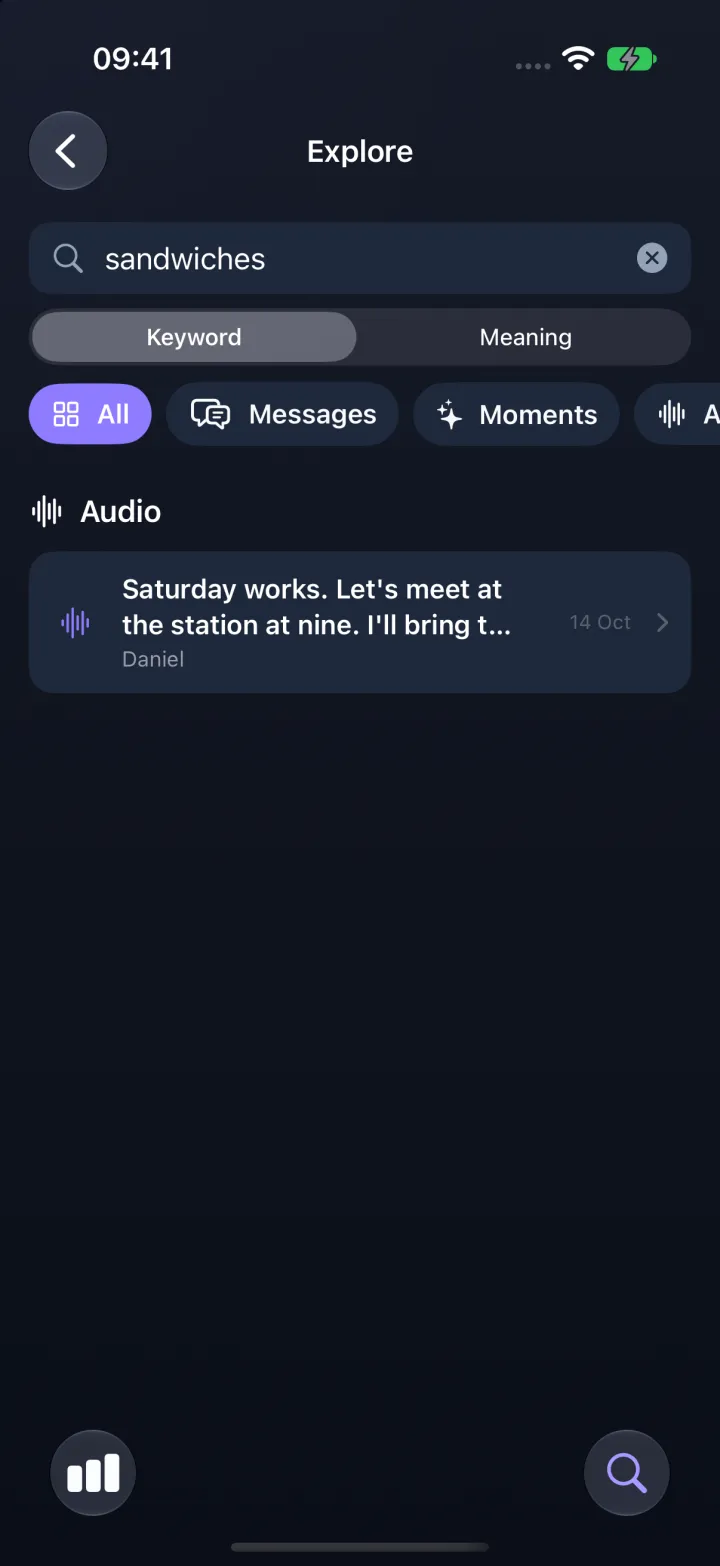
- Transcribed voice notes show up in search, under the Audio chip in Explore.
Good to know. Transcription runs on your device by default. If a voice note can only be transcribed on Apple's servers, Chat Explorer asks before it sends that one note. You can allow it every time with Allow Apple Server Fallback, which is off by default.