
Guide 09 0:14 Narrated · Sound on
Keep a chat private with a lock Read the narration 3 lines
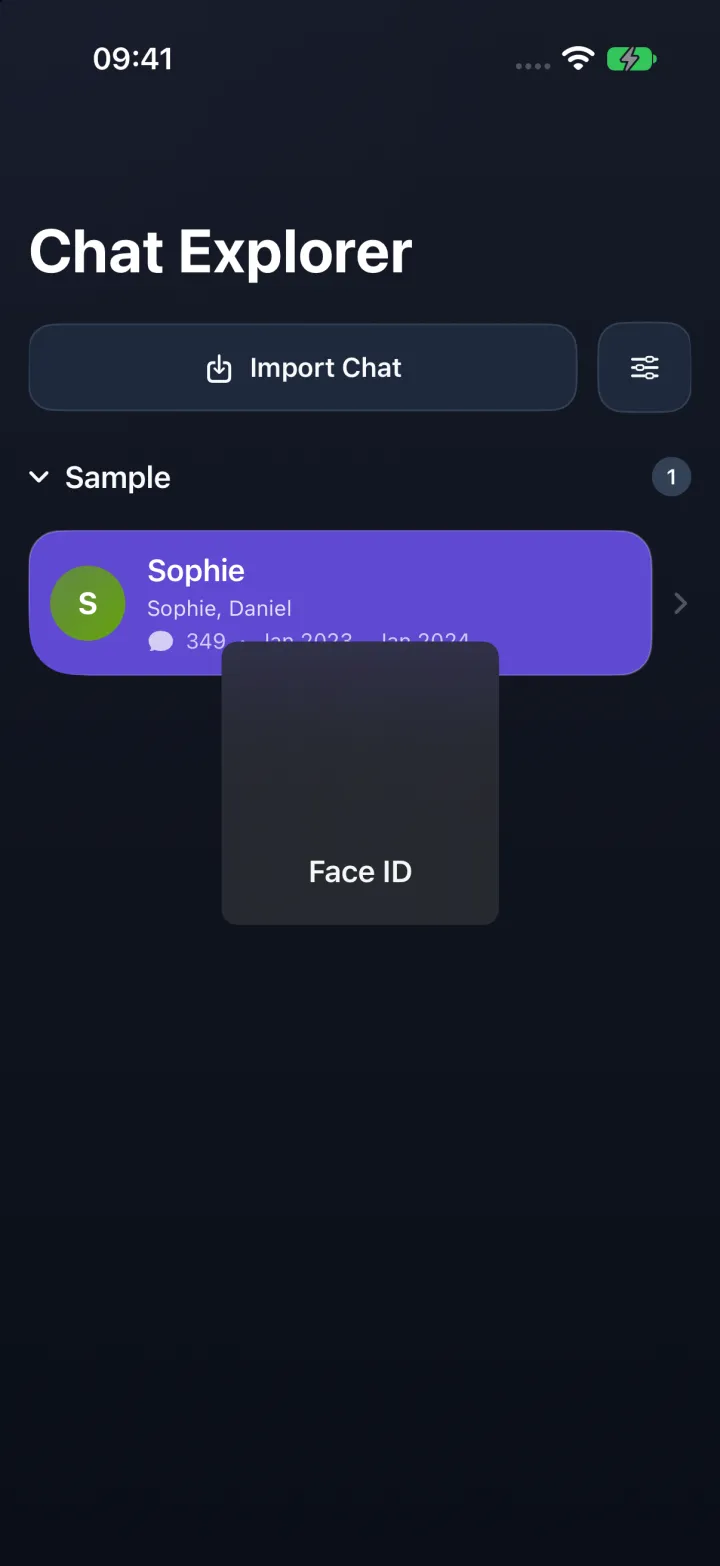
Your chats are stored and analysed on your device. There is no account to create. You can also lock a chat, so it opens only with Face ID.
Chats hold private things. Chat Explorer keeps imported chats on your device by default, with no account to create, and lets you lock the chats you want to keep to yourself.
Private by default.
- Imported chats are stored and analysed on your device.
- There is no account and no sign-in.
- Content leaves your device only when you turn on a feature that sends it, such as an AI engine that runs elsewhere, Apple server transcription for a voice note, or iCloud Chat Sync, or when you share a PDF or a card yourself.
Lock a chat.
- In the list of chats, touch and hold the chat, or swipe it to the right. On Mac, right-click it or use its … button.
- Choose Lock Chat and confirm with Face ID, Touch ID, Optic ID or your passcode.
- A lock appears next to the chat's name. From now on, it opens only after you confirm it is you.
- To remove the lock, open the same menu and choose Unlock Chat.

Good to know. By default, a locked chat stays on your device even when you use an AI engine that runs elsewhere, and locking a chat stops its requests right away. On iPhone and iPad, you can allow one locked chat to use that engine: open it, then touch and hold it in the list and choose Allow External AI.