
Guide 08 0:10 Narrated · Sound on
Export a PDF or share a snapshot Read the narration 1 line
Keep a conversation as one PDF, or share a snapshot of a milestone or a statistic.
Sometimes you want a chat outside the app: a copy to print, to keep with your documents, or a card to send to the person you were talking to. Chat Explorer does both.
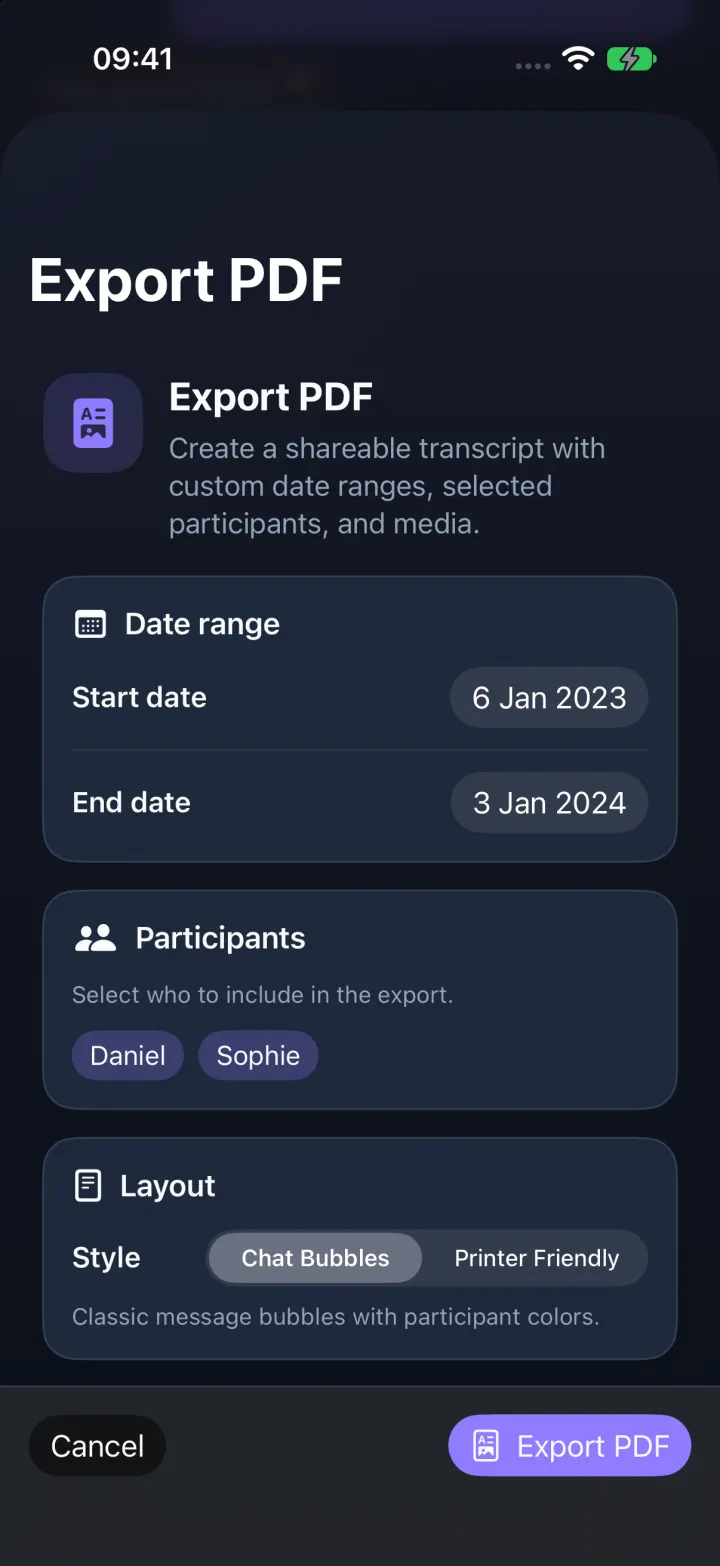
Export a PDF.
- Open a chat and tap Export PDF at the top right.
- Set the Date range with a start and an end date.
- Under Participants, choose whose messages to include.
- Pick a Layout: Chat Bubbles keeps the look of the chat, Printer Friendly saves ink.
- Under Content, choose whether to include media and audio transcripts.
- Tap Export PDF, then save the file or share it.
Share your chat story.
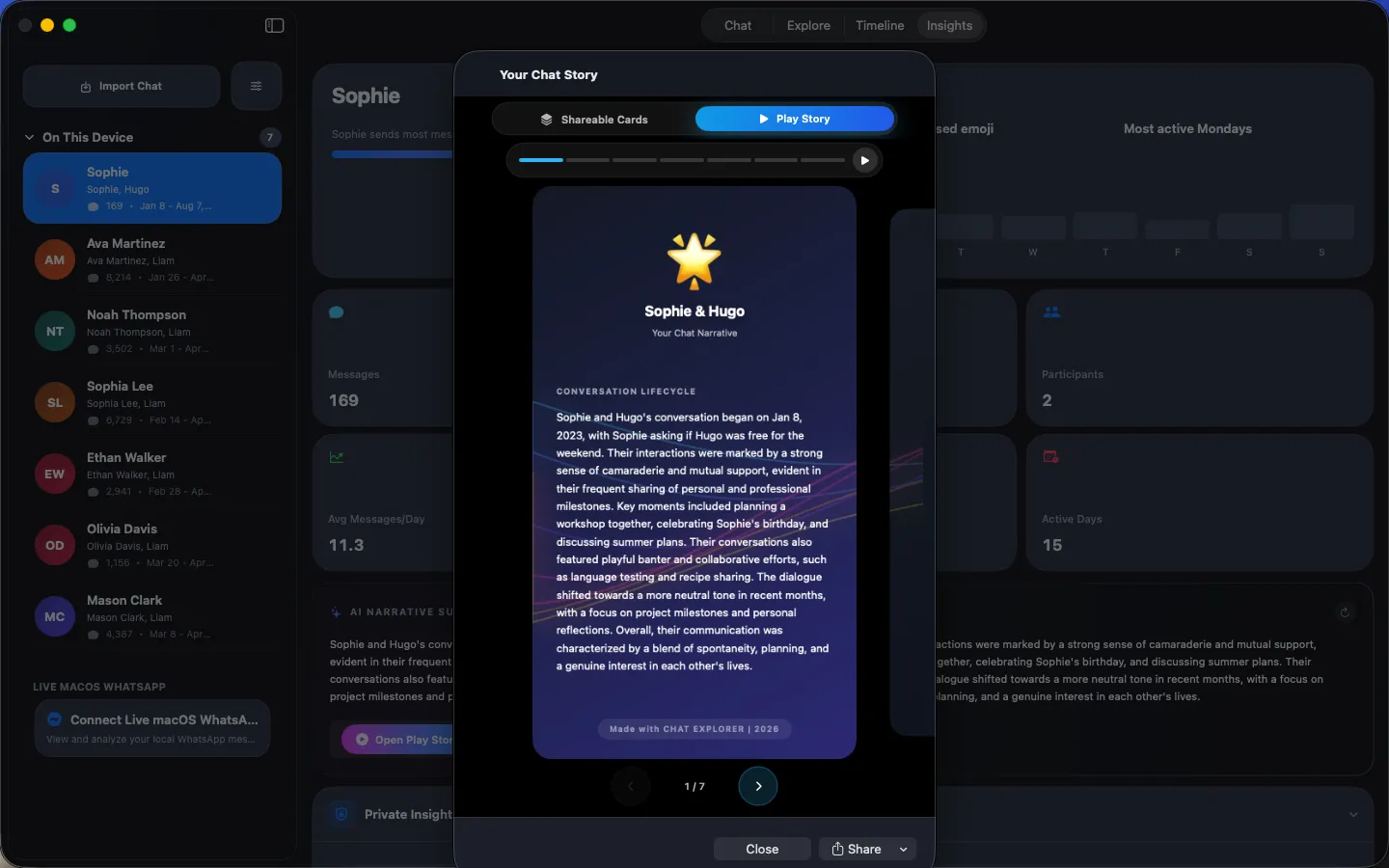
- In Insights, find the AI Narrative Summary card and tap Open Play Story.
- Choose Play Story to watch your chat as a short story, or Shareable Cards to browse the cards.
- Tap Share to send one card, the best card, or all of them.
To share a single chart instead, touch and hold it in Insights and choose Share Image.
Good to know. On the free plan, a PDF includes the messages that are unlocked and carries a Chat Explorer Free watermark, and two of the story cards are available. Pro adds the full chat, the transcripts and every card. A PDF or a card is a copy that leaves the app, so check that the others in the chat are happy to share it.