
Guide 04 0:10 Narrated · Sound on
Browse your chat on the Timeline Read the narration 1 line
The Timeline shows your history by date, with the busy days, the milestones and the media you shared.
Scrolling a long chat shows you one screen at a time. The Timeline shows the whole history as months, weeks and days, each with a short story of what you talked about.
Build the Timeline.
- Open a chat and tap the Timeline tab.
- The first time, tap Build Timeline. Chat Explorer writes a short story for each day.
- Keep browsing while it works. A long chat can take a while, and you can come back later to Finish Timeline.
Read it.
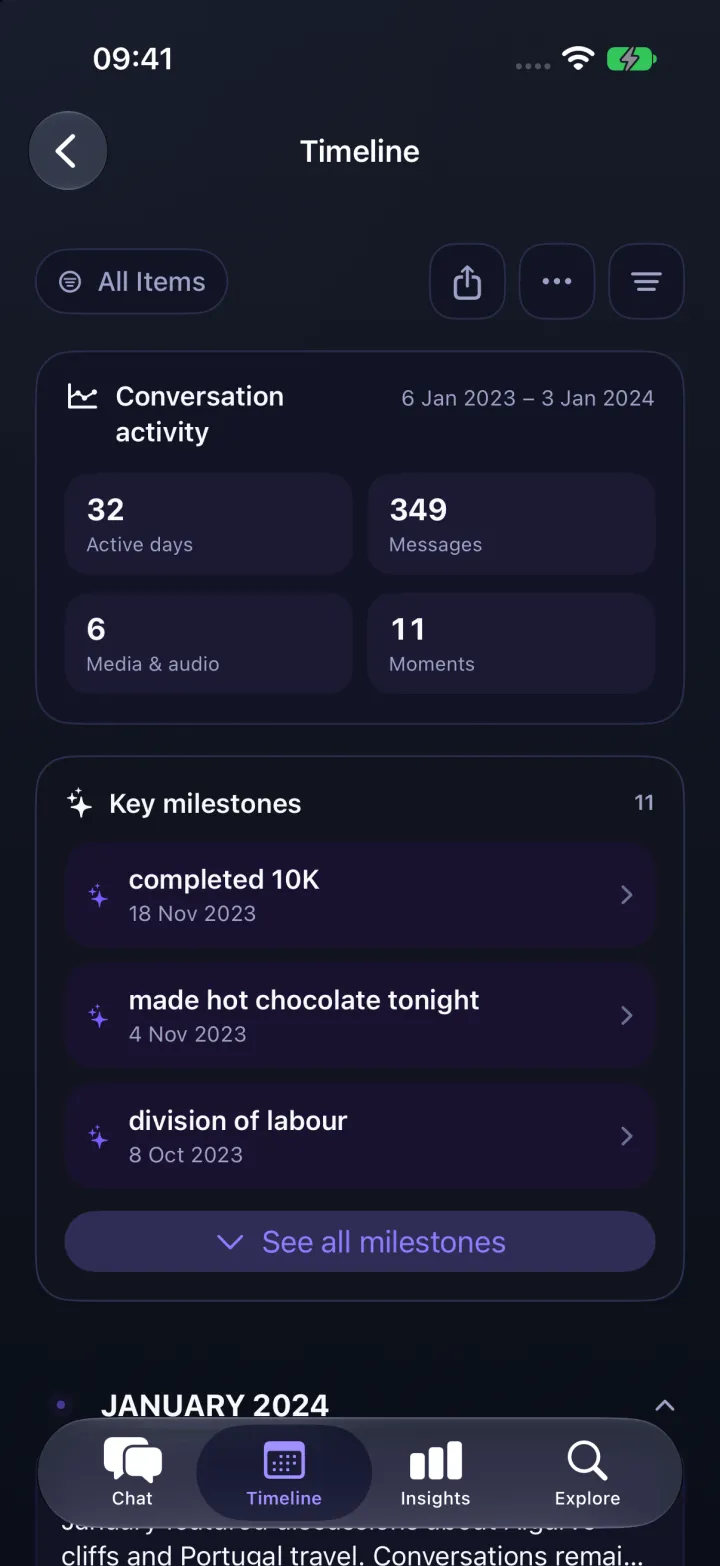
- At the top, Conversation activity sums up the chat: active days, messages, media and audio, and moments.
- Key milestones lists the moments that stand out. Tap See all milestones for the full list.
- Scroll down through the months. Each month, week and busy day has a short summary and topic tags.
- Tap a milestone or a day to open its story. From there, View evidence in Chat takes you to the messages.

Find your way faster.
- Use the filter at the top to show only Key Milestones, Media Days, Call Days or Week & Month Stories.
- Touch and hold a week or a month and choose Build Week Story or Build Month Story for a summary of the whole stretch.
- Collapse a month you have read with the arrow next to its name.
Good to know. If Apple Intelligence is off, the Timeline asks you to turn it on in Settings, then Apple Intelligence & Siri. By default the stories are written on your device. To run them somewhere else, see Choose where the AI runs.